

Speed Up My Mac
SUMM · Mac cleaner app
Speed Up My Mac shows what is filling your Mac, finds junk and leftovers, and lets you close apps you aren't using. Every step is shown first, and nothing moves until you say so.
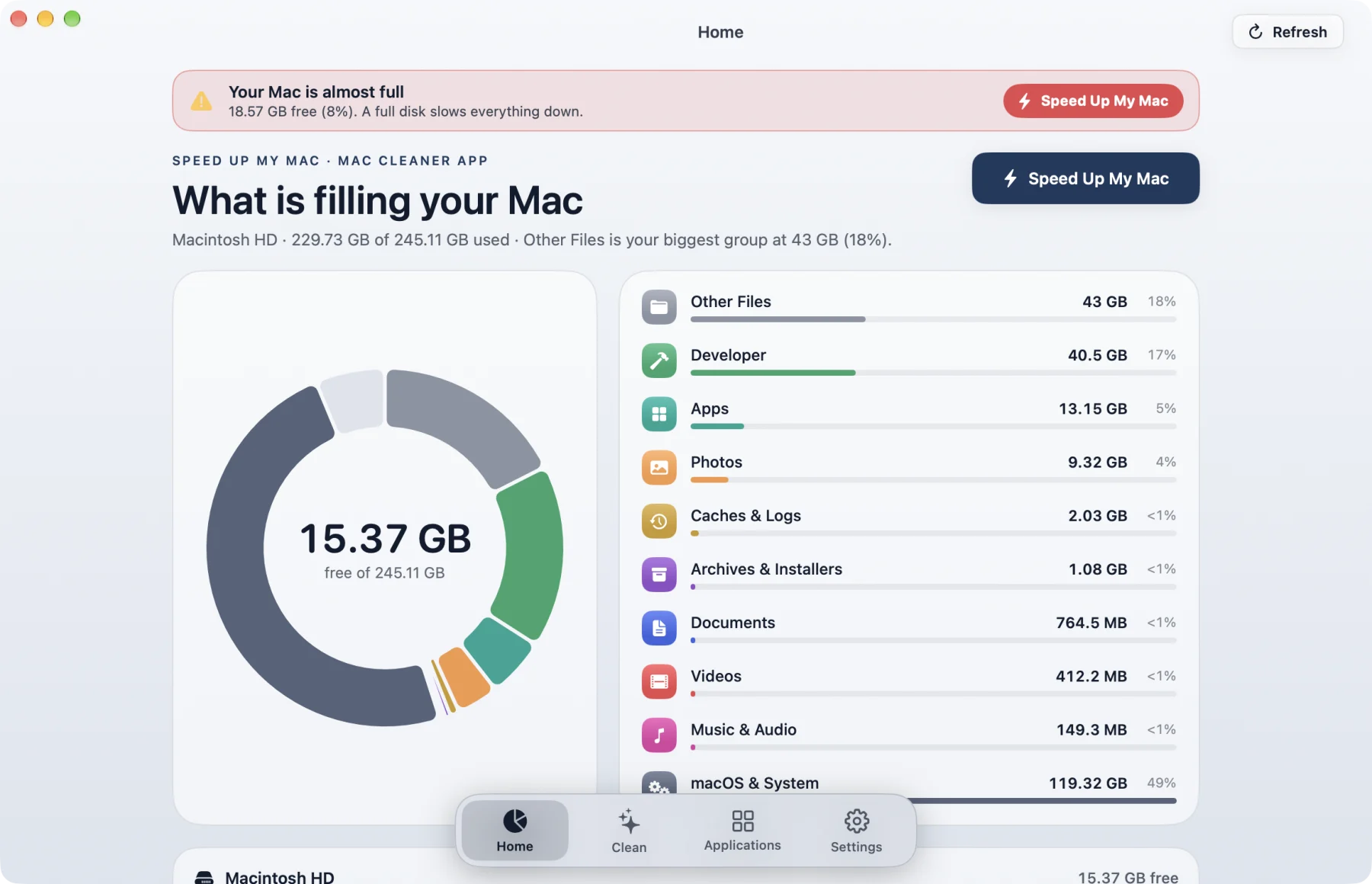
- Shows what is filling your Mac, by type
- Finds junk, old files and app leftovers
- Every item has a plain reason and a risk level
- Nothing moves until you confirm
- Move to the Bin, or delete for good: you choose
- Works on Apple silicon and Intel Macs
What it does
- See what fills your Mac. Home draws your disk by type (apps, photos, videos, developer files, caches and more) with the real size of each, so the big ones stand out.
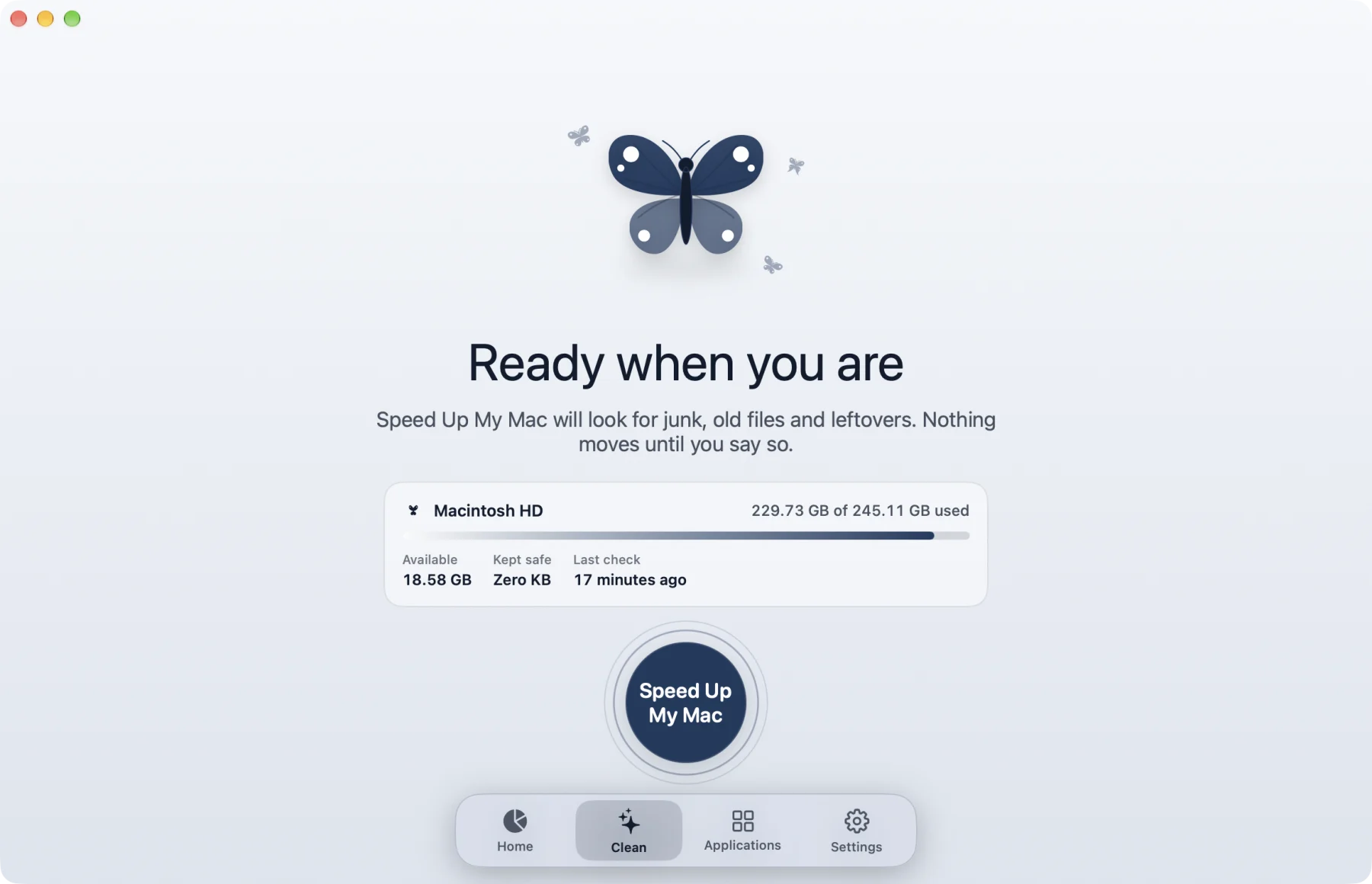
- Find junk, with a reason for each. Press Speed Up My Mac and it looks for caches, logs, old installers and other files that can be made again, in the folders you allow. Each item says what it is and why it is safe or risky.
- Five risk levels. Safe to Clean, Recommended, Review First, Use Caution and Check Yourself. Each is shown with a colour, a symbol and a word. Safe and Recommended are ticked for you. Use Caution is never ticked for you.
- You choose how it goes. Every clean-up asks first: move to the Bin, where you can put it back, or delete permanently. Nothing is ever deleted automatically.
- Close apps you aren't using. It lists your open apps, longest open first, and shows how much memory is in use. Closing asks an app to quit, and force-quits it if it is still open after a few seconds. You see a warning first, and unsaved work in a force-quit app is lost.
- See what starts with your Mac. Startup apps are listed so you can see them. Speed Up My Mac changes nothing here: macOS keeps that switch in System Settings.
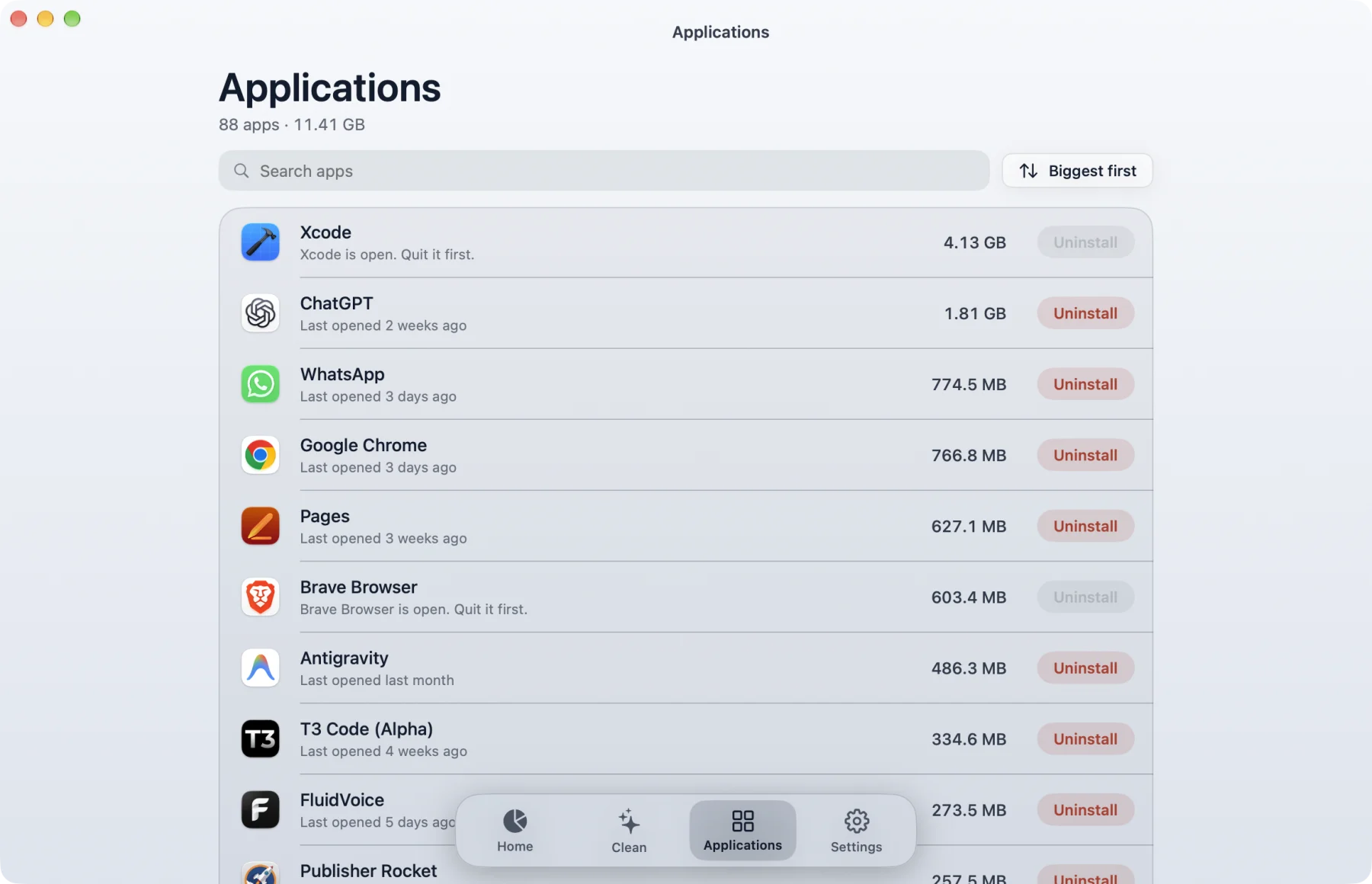
- Uninstall apps and find what they left. Applications lists every app biggest first and asks before it removes one. Afterwards, Speed Up My Mac can find the files that app left behind.
- Developer clean-up. Xcode build files, package caches and other files your tools can remake, measured before you touch them. Docker's space is shown, but Docker controls it, so you change it in Docker.
- Duplicates and big old files. Clutter Studio finds the same file twice, similar photos, and large files you have not opened in a while.
How it works
- 1Allow. Pick a folder once, or your home folder for the fullest picture. It only ever looks where you say.
- 2Review. Open the results. Every item shows its path, size, a reason and a risk level.
- 3Confirm. Choose Bin or delete, read the sheet and confirm. A log on your Mac records every move.
Built to be safe
- Every move is checked again just before it happens: the size, the date, that the file is inside a folder you allowed, and that it is not protected.
- A record of the batch is written before anything moves, so a crash part-way is reconciled the next time you open the app.
- System files, other users' folders, iCloud Drive and cloud-storage folders, Keychains, Mail, Messages, Photos libraries, app Containers, device backups and app bundles are always blocked.
- A safety switch in Settings turns off all moving, both Bin and delete, in one click.
Private by design
Speed Up My Mac does not use the network. It has no accounts, no analytics and no tracking, and it never sends your file names, app list or anything else anywhere. It keeps a log of its own moves on your Mac so you can read it, and that log stays there.
What it does not do
- It does not remove malware, and it does not boost your processor or memory. Freeing disk space helps a nearly full Mac, and closing apps frees memory, but that is all.
- It never cleans on its own, in the background or on a schedule. The optional weekly reminder is one notification that opens the app. Nothing runs by itself.
- It cannot turn off startup apps. It lists them, and macOS keeps that switch in System Settings.
- It does not move files outside the folders you allowed, and it never touches the protected places listed above.
- It cannot undo "delete permanently". Use the Bin when you want to be able to put something back.
Permissions
Speed Up My Mac only reads folders you pick with the standard macOS folder picker. The first time you open Applications, macOS asks once for permission to the Applications folder. If you say no, that screen stays empty and nothing is read or changed.
System requirements
- macOS 15 Sequoia or later
- Apple silicon or Intel Mac
- About 8 MB of disk space
Pricing
One licence is $29 (list price $49), paid once, and lasts for life. All updates are free. For bulk licences for a team, school or company, email support@elegantmac.com.
Free guides
How to free up space on a Mac when it says your disk is almost full
A calm, step-by-step way to find what is filling your Mac and clear it safely, from the ten-minute wins to the files macOS hides.
Do you need a Mac cleaner app? An honest answer
What cleaner apps can and cannot do, when they are worth paying for, and how to tell a trustworthy one from a risky one.
How to find and delete large files on a Mac
Three ways to find the biggest files on your Mac, from Finder's built-in search to a Terminal one-liner, and how to decide what is safe to remove.
How to find and delete duplicate files and photos on a Mac
Duplicate photos, downloads and documents quietly waste gigabytes. Here is how to find them safely, by hand and with an app.
How to clean Xcode and developer files on a Mac
Xcode, simulators, package caches and node_modules can quietly take 50 GB or more. Here is what is safe to remove and what to keep.
Questions
- Will it delete things without asking?
- No. Every clean-up shows what it will move and asks you to confirm, and you pick Bin or delete permanently each time. Nothing runs automatically.
- Can I get something back?
- If you chose the Bin, yes: open the Bin and choose Put Back. If you chose delete permanently, no. Files moved to the Restore Shelf by earlier versions stay there for 30 days.
- Will it make my Mac faster?
- It frees disk space and lets you close apps. A Mac with a nearly full disk often feels slow, so clearing space can help. It does not change your processor or boost memory, and we don't claim it does.
- Why does it ask me to pick a folder?
- So it only looks where you allow. Pick your home folder for the fullest results, or choose folders one at a time. You can remove a folder in Settings and it stops seeing it at once.
- Why does macOS ask about the Applications folder?
- macOS asks once, the first time, before an app reads or changes other apps. Allow it if you want the Applications screen to list your apps and remove ones you choose.
- Why does it force-quit some apps?
- When you choose to close an app, it first asks the app to quit. If the app is still open after a few seconds it is force-quit. You see a warning before it happens, and unsaved work in that app is lost.
- Does it send any data?
- No. The app does not use the network. It has no accounts, no analytics and no tracking. Your file names and app list never leave your Mac. Links open in your browser only when you click them.
- How do I install it?
- After you pay, download the .dmg from the confirmation page, open it and drag Speed Up My Mac into Applications. There is no licence key to enter.
- I lost my download link.
- Email support@elegantmac.com from the address you bought with, with your order number if you have it, and we will send it again.
- How do I update?
- All updates are free with your lifetime licence. Speed Up My Mac does not update itself.
- Can I get a refund?
- Yes. Every purchase has a 30-day money-back guarantee. See the refund policy or email support@elegantmac.com.
- I need help.
- Email support@elegantmac.com.
Privacy Policy · Terms of Service · Refund Policy · Licensing
© 2026 Rethax Corp. Elegantmac is a brand of Rethax Corp, Delhi, India. Mac, macOS and Apple silicon are trademarks of Apple Inc.